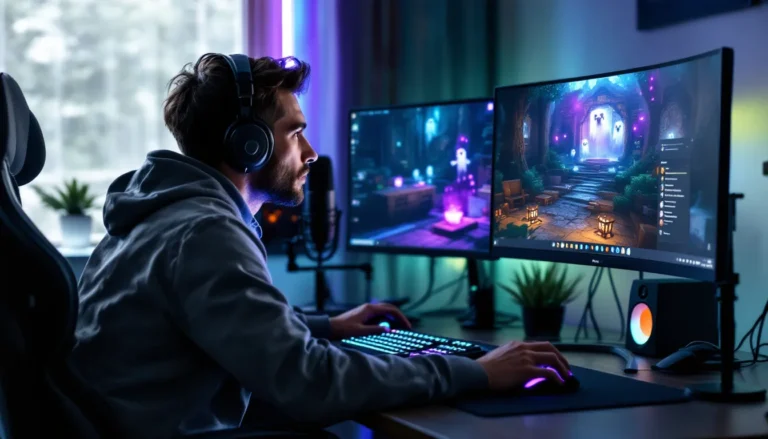
In the thrilling world of gaming, every millisecond counts. Picture this: you’re on the brink of victory, your fingers dance over the keyboard, and suddenly—lag! Your dreams of glory evaporate faster than your last pizza slice. If only you could crank up those frames per second (FPS) and leave your competition in the dust.
Understanding FPS and Its Importance
Frames per second (FPS) measures how many images a computer generates each second during gaming. It’s a crucial factor affecting both visual quality and gameplay responsiveness.
What Is FPS?
FPS defines the number of frames displayed every second. In gaming, a higher FPS means smoother visuals and better animation. Typical gaming experiences range from 30 FPS for console titles up to 144 FPS or more for high-end PCs. Players notice that frames increase fluidity, enhancing overall immersion. Lower FPS often leads to choppy movements and disruptions in gameplay flow.
Why FPS Matters for Gaming
FPS plays a vital role in determining gameplay quality. Competitive gamers prefer higher FPS for improved reaction times and accuracy. A stable 60 FPS typically provides a solid foundation for most titles, while many esports competitors target 144 FPS or higher for optimal performance. Increased FPS reduces lag, making it easier for players to respond quickly during critical moments. Performance consistency in FPS also contributes to an enjoyable gaming experience, minimizing frustration.
Hardware Upgrades
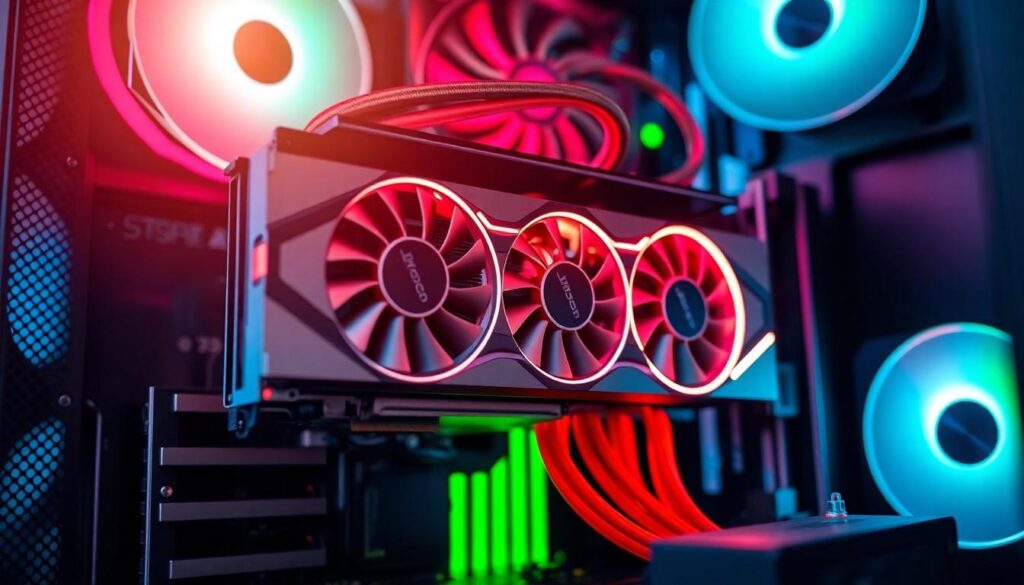
Upgrading hardware components can significantly boost FPS and enhance gaming experiences. Focusing on specific upgrades ensures optimization.
Upgrading Your Graphics Card
A powerful graphics card directly influences FPS rates. Newer models support advanced rendering techniques and higher resolutions, enabling smoother gameplay. For instance, graphics cards like the NVIDIA GeForce RTX 3060 or AMD Radeon RX 6700 XT provide substantial performance improvements compared to older versions. Gamers often see FPS jumps of 30% or more with these upgrades. Selecting a suitable card that fits the budget while meeting gaming needs is essential.
Increasing RAM Capacity
Increasing RAM capacity contributes to overall system performance. Many modern games require at least 16GB for optimal performance, especially in open-world settings. Upgrading from 8GB to 16GB or more allows for better multitasking and can reduce stuttering during gameplay. Frequent frame drops often stem from insufficient memory. Thus, ensuring your system has enough RAM is vital for maintaining consistent FPS rates in demanding titles.
Software Optimization
Optimizing software settings can significantly boost FPS. Various software adjustments enhance overall gaming performance.
Updating Drivers
Updating graphics drivers enhances FPS performance. Manufacturers regularly release updates to improve compatibility and functionality. Newer drivers often include optimizations for the latest games, resulting in a direct impact on frame rates. He or she can visit the NVIDIA or AMD website to download the latest drivers. It’s crucial to install these updates periodically to take advantage of performance improvements and bug fixes.
Adjusting Game Settings
Adjusting game settings can maximize FPS rates. Reducing texture quality, shadows, and anti-aliasing often yields higher frame rates. Players may also benefit from setting the resolution to a lower value. Enabling fullscreen mode instead of windowed mode can lead to better performance. Disabling V-Sync prevents frame capping, resulting in smoother gameplay. Each small adjustment contributes to a more enjoyable gaming experience.
System Settings Adjustments
To enhance FPS on a PC, focusing on system settings adjustments becomes essential. Modifications in Windows can significantly impact performance.
Modifying Windows Settings
Adjusting Windows settings can unlock better performance. Access the Game Mode by searching for “Game Mode” in the settings menu; enabling it optimizes background activities during gaming. Additionally, adjusting the power plan to “High Performance” allows the CPU to utilize its full potential consistently. Turning off visual effects, such as animations and shadows, through the Performance Options can also increase responsiveness. Using these settings ensures the system prioritizes performance over aesthetics, providing an edge in demanding gaming scenarios.
Disabling Background Applications
Managing background applications directly affects FPS. Closing unused programs running in the background frees up valuable system resources. Players can access the Task Manager by pressing Ctrl + Shift + Esc; this menu shows which applications consume the most memory and CPU resources. Disabling startup programs that aren’t necessary can boost performance by reducing the load on the system at boot-up. Keeping the system clean from other applications during gameplay enhances responsiveness and maintains higher FPS levels.
Advanced Techniques
Advanced techniques can significantly improve FPS on a PC. These approaches complement hardware and software optimizations discussed previously.
Overclocking Your GPU
Overclocking your GPU can lead to noticeable FPS increases in gaming. It involves running the graphics processor at higher speeds than the manufacturer’s specifications. Users can achieve this by utilizing software like MSI Afterburner or ASUS GPU Tweak. Boosting core and memory clock speeds creates better performance, but temperatures must be monitored closely to avoid overheating. Proper cooling solutions also ensure stability during intense gaming sessions. Many gamers report FPS gains of 10% to 20% following overclocking, enhancing overall gameplay experience.
Utilizing Game Mode in Windows
Utilizing Game Mode in Windows optimizes the operating system for gaming performance. Game Mode prioritizes CPU and GPU resources for the running game, ensuring smoother gameplay. Activating this feature is straightforward; users can find it in Settings under Gaming. Once enabled, background activities receive reduced resources, minimizing lag and distractions. Users may notice an improvement in FPS, especially in demanding titles. Furthermore, coupling this setting with a dedicated high-performance power plan maximizes the system’s efficiency during gaming sessions.
Conclusion
Boosting FPS on a PC can transform the gaming experience. By focusing on hardware upgrades like a powerful graphics card and sufficient RAM players can achieve significant performance gains. Software optimizations such as updating drivers and adjusting in-game settings further enhance frame rates.
Additionally altering system settings and managing background applications play a vital role in maintaining high FPS levels. For those willing to explore advanced techniques overclocking can provide an extra edge. Implementing these strategies not only reduces lag but also ensures a smoother and more responsive gaming experience. Gamers looking to elevate their play should consider these tips to maximize their PC’s potential.