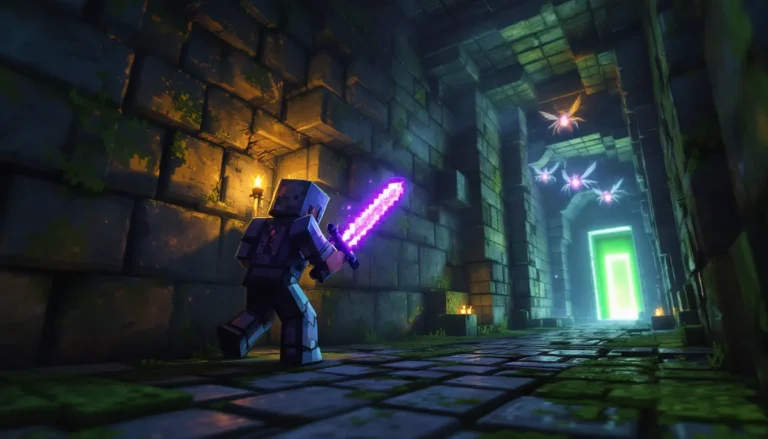
Minecraft Bedrock Edition runs on everything from your phone to your Xbox, but no matter what device you’re on, the vanilla textures can start to feel stale after your hundredth build. That’s where texture packs come in, transforming your blocky world from the default look into something completely new, whether that’s ultra-realistic, cartoon-styled, or optimized for competitive PvP.
Bedrock Edition’s texture pack system is powerful but different from Java Edition, and knowing how to find, install, and optimize packs across different platforms can be tricky. This guide covers everything from what texture packs actually do under the hood to the top picks in 2026, installation walkthroughs for every device, and troubleshooting tips when things go wrong.
Table of Contents
ToggleKey Takeaways
- Minecraft Bedrock texture packs transform the visual appearance of blocks, items, and UI elements without altering gameplay, making them purely cosmetic and safe for multiplayer use.
- Top texture packs for 2026 include UMSOEA R for realistic visuals, Pure BD Craft for stylized aesthetics, and Faithful 32×32 PvP Edit for competitive play, each optimized for different playstyles.
- Installation varies by platform: mobile users tap downloaded .mcpack files to auto-import, Windows 10/11 uses the AppData resource_packs folder, and console players rely on the Marketplace or Realm transfers.
- Performance optimization depends on your device—flagships handle 64×64 packs smoothly, while Nintendo Switch and budget phones perform better with 16×16 or simplified 32×32 Minecraft Bedrock texture packs.
- Safe downloads come from the official Minecraft Marketplace, MCPEDL, CurseForge, and Planet Minecraft, while custom pack creation requires PNG image editing software, proper folder structure, and a valid manifest.json file.
- Common texture pack issues like missing packs or lag stem from incorrect file locations, corrupted downloads, or excessive resolution for your hardware—adjusting pack resolution and render distance resolves most performance problems.
What Are Texture Packs in Minecraft Bedrock Edition?
Texture packs change the visual appearance of blocks, items, mobs, and UI elements in Minecraft Bedrock Edition without altering gameplay mechanics. Think of them as a visual skin for your entire world, swapping out the default 16×16 pixel textures for new designs that can be anything from hyper-detailed to minimalist.
Unlike mods or add-ons, texture packs don’t add new blocks or change game behavior. They’re purely cosmetic, which means they’re safe to use in multiplayer and won’t cause compatibility issues with Realms or servers.
How Texture Packs Work in Bedrock
Bedrock texture packs use the .mcpack file format, which is basically a bundled archive of PNG image files organized in specific folders. When you apply a pack, the game replaces its default textures with the ones from your chosen pack.
The structure includes folders for blocks, items, entities (mobs), particles, UI elements, and sometimes even custom fonts. Higher resolution packs (32×32, 64×64, 128×128, or even 512×512) offer more detail but demand more from your device’s GPU and RAM.
Bedrock supports multiple texture packs active simultaneously, layered in priority order. If two packs modify the same texture, the one higher in your active pack list takes precedence.
Texture Packs vs. Resource Packs: Understanding the Difference
In Bedrock Edition, “texture pack” and “resource pack” are often used interchangeably, but there’s a technical distinction. Resource packs are the broader category, they can include textures, sounds, music, fonts, and text translations.
Texture packs specifically focus on visual textures, but most modern packs are technically resource packs because they bundle multiple asset types. On the Marketplace and in community downloads, you’ll see both terms used, but functionally they install and work the same way in Bedrock.
Java Edition uses the term “resource pack” exclusively, and while many pack creators release versions for both editions, the file formats and folder structures differ. You can’t directly use a Java resource pack on Bedrock without conversion.
Why Use Texture Packs in Minecraft Bedrock?
The most obvious reason is aesthetics, fresh visuals breathe new life into builds you’ve seen a thousand times. A medieval castle looks completely different with a fantasy texture pack versus a realistic one, and that visual shift can reignite your creativity.
For content creators and streamers, texture packs help establish a unique visual identity. Your viewers can recognize your world at a glance when you’re running a distinctive pack, and high-res textures make screenshots and videos pop.
Competitive players often use PvP-optimized texture packs with cleaner UI elements, reduced visual clutter, and distinct block outlines that make terrain easier to read during fast movement. Some packs also feature shorter grass and lower-profile foliage, giving slight visibility advantages in combat scenarios.
Performance is another angle, contrary to what you might expect, some lower-resolution stylized packs (8×8 or simplified 16×16) can actually improve frame rates on older devices by reducing texture memory overhead. Players on mobile or Switch often use these lighter packs to maintain smooth gameplay.
Thematic builds benefit hugely from matching texture packs. Building a cyberpunk city? There are neon-infused sci-fi packs. Working on a Japanese village? Traditional texture packs with authentic architecture details exist. The right pack turns a good build into something screenshot-worthy.
Top Texture Packs for Minecraft Bedrock in 2026
The texture pack scene evolves constantly, but certain packs have dominated the Bedrock community in 2026 thanks to regular updates, cross-platform compatibility, and strong visual design.
Best Realistic Texture Packs
UMSOEA R remains the gold standard for photorealistic textures in Bedrock, offering 128×128 and 256×256 versions with PBR (Physically Based Rendering) support. The pack works beautifully with RTX on compatible hardware, delivering stunning reflections, depth, and lighting.
Natural Realism provides a middle ground at 64×64 resolution, keeping realistic detail without crushing performance on mid-range devices. It’s been updated through Bedrock 1.21.3 and handles the newer block types from recent updates flawlessly.
ESTN Realism is newer to the scene but gained traction in early 2026 for its balanced approach, realistic without being overly busy. Grass and foliage look natural, and stone textures have subtle variation that makes large builds feel less repetitive.
Best Cartoon and Stylized Texture Packs
Pure BD Craft (Sphax) continues its legacy with bold comic-book style vectors that scale beautifully from 16×16 up to 512×512. The Bedrock version supports custom UI elements and has been a community favorite since 2019.
Jolicraft brings a hand-painted, storybook aesthetic that’s charming without being overly cutesy. The 32×32 resolution performs well on all platforms, and the warm color palette makes survival worlds feel cozy.
Cubik is a minimalist geometric pack that reduces Minecraft’s already blocky aesthetic to even simpler shapes and flat colors. It’s gained popularity among builders who want a clean, modern look that emphasizes structure over texture detail.
Best PvP and Performance Texture Packs
Faithful 32×32 PvP Edit maintains vanilla Minecraft’s look while cleaning up visual noise. Grass is shorter, particles are less obtrusive, and hotbar elements are sharper, small changes that add up during competitive play.
Precision 16×16 is built specifically for Bedrock PvP, with distinct ore highlights, clear block edges, and reduced foliage density. Many competitive PvP servers allow this pack because it doesn’t fundamentally alter block identification.
Hyperion UHC was designed for Ultra Hardcore mode but works for any competitive scenario. The pack features high-contrast textures, making ores easier to spot and player models stand out against terrain.
Best Medieval and Fantasy Texture Packs
Conquest Reforged is the go-to for serious medieval builders, offering hundreds of block variations and an incredibly detailed 32×32 base. The Bedrock port (updated in late 2025) doesn’t include all the Java version’s custom blocks but still transforms castles and villages dramatically.
Chroma Hills RPG creates a fantasy atmosphere with vibrant colors, rounded edges, and a subtle hand-painted style. It’s been optimized for Bedrock performance and runs smoothly even on mobile devices.
Mythic combines medieval elements with subtle fantasy touches, think glowing runes on stone bricks and slightly mystical foliage. It’s perfect for adventure maps or themed survival worlds with a magical bent.
How to Download and Install Texture Packs on Bedrock Edition
Installation processes vary by platform, but Bedrock’s unified codebase means the core steps are similar whether you’re on mobile, PC, or console.
Installing Texture Packs on Mobile Devices (iOS and Android)
On mobile, you’ll typically download .mcpack files from trusted sources. When you tap the downloaded .mcpack file, iOS and Android automatically prompt you to open it with Minecraft.
The game imports the pack and places it in your resource pack library. From the main menu, tap Settings > Global Resources, then activate your new pack by moving it from “Available” to “Active” using the plus icon.
For packs downloaded as .zip files (less common but it happens), you’ll need to extract the archive first, then move the folder to your Minecraft directory. On Android, that’s usually /sdcard/games/com.mojang/resource_packs/. iOS requires a file manager app like Documents by Readdle to access the equivalent path.
After moving files manually, restart Minecraft completely, force-close the app, don’t just minimize it. The pack should appear in your resource pack list on relaunch.
Installing Texture Packs on Windows 10/11
Windows 10/11 runs the Microsoft Store version of Bedrock. Double-clicking a .mcpack file automatically imports it into Minecraft if the file association is set correctly.
If that doesn’t work, manually place texture pack folders in C:Users[YourUsername]AppDataLocalPackagesMicrosoft.MinecraftUWP_8wekyb3d8bbweLocalStategamescom.mojangresource_packs.
You can also access this faster by typing %localappdata%PackagesMicrosoft.MinecraftUWP_8wekyb3d8bbweLocalStategamescom.mojangresource_packs into the Windows search bar or File Explorer address bar.
Once the pack is in place, launch Minecraft, go to Settings > Global Resources, and activate it. Changes apply immediately in existing worlds, though you might need to reload chunks (fly away and return) to see texture updates on already-loaded terrain.
Installing Texture Packs on Console (Xbox, PlayStation, Nintendo Switch)
Consoles are the trickiest platform for custom texture packs because Microsoft, Sony, and Nintendo restrict file system access. The primary method for console players is the Minecraft Marketplace, which offers both free and paid packs vetted by Mojang.
Browse the Marketplace from the main menu, download your chosen pack, and it auto-installs. Activate it via Settings > Global Resources just like other platforms.
For custom packs not on the Marketplace, there’s a workaround using Realms. Upload the pack to a Realm from a PC or mobile device (where you can install custom packs), then join that Realm from your console. The pack downloads as part of the Realm’s resource package.
This method has limitations, the pack only applies while you’re in that specific Realm, and you’ll need an active Realms subscription. Some players create a temporary Realm just for pack transfers, then cancel after downloading.
Switch players have the additional option of transferring packs via microSD card if they’re comfortable with file management and have a PC to prep the files, though this is more involved than the Realm method.
Where to Find Safe and High-Quality Bedrock Texture Packs
Not all download sites are created equal, and sketchy sources can bundle malware with texture packs or deliver low-quality ports from Java Edition that break on Bedrock.
Official Minecraft Marketplace
The Minecraft Marketplace is the safest option, every pack is reviewed by Mojang and guaranteed to work with your Bedrock version. You pay with Minecoins (Minecraft’s in-game currency), with packs ranging from 300 to 1,500+ Minecoins depending on complexity.
Marketplace packs auto-update when creators release new versions, ensuring compatibility with future Bedrock updates. The downside is limited selection compared to the broader community scene, and you’re restricted to what Mojang approves.
Trusted Third-Party Websites and Communities
MCPEDL (Minecraft Pocket Edition DL) is the largest community repository for Bedrock packs, add-ons, and maps. Packs are user-submitted but moderated, and the site includes ratings and comments to help identify quality releases.
Most creators use ad-supported download links (like LinkVertise or MediaFire). Be cautious with pop-ups and never download executable files, texture packs should only be .mcpack or .zip files containing image assets.
CurseForge expanded Bedrock support in recent years, though it’s still primarily Java-focused. The Bedrock section is smaller but growing, and CurseForge’s stricter moderation means fewer sketchy uploads.
Planet Minecraft hosts both Java and Bedrock texture packs with clear labeling. The community voting system helps surface high-quality packs, and established creators often maintain both edition versions of popular packs.
Reddit’s r/MCPE and r/MinecraftBedrock communities regularly share pack releases and recommendations. Creators sometimes debut new packs here before wider distribution, and the comment sections usually flag any issues quickly.
Some pack creators host downloads on their own websites or Patreon pages, especially for high-resolution or premium packs. These are generally safe if you’re following a known creator, but always scan downloads with antivirus software before opening.
Resources like Nexus Mods primarily focus on other games but occasionally host Minecraft content, including texture packs and conversion tools for adapting Java packs to Bedrock format.
Creating Your Own Custom Texture Pack for Bedrock
Building a custom texture pack lets you tailor Minecraft’s look exactly to your vision, whether that’s tweaking a few blocks in an existing pack or designing something entirely original.
Essential Tools and Software
Image editing software is the foundation. GIMP (free, open-source) handles everything you need for pixel art and texture editing. Paint.NET is another solid free option for Windows users. If you want professional features, Photoshop or Aseprite (specifically built for pixel art) are worth the investment.
Your editor needs to support PNG transparency and indexed color modes for best results. Most Minecraft textures are 16×16 pixels at base resolution, though you can create packs at 32×32, 64×64, 128×128, or higher.
Text editors help manage JSON files that define pack metadata and certain behaviors. Visual Studio Code with a JSON validator extension catches syntax errors before you test in-game. Notepad++ works fine too if you prefer something lighter.
Bedrock Edition texture template packs provide the folder structure and default textures to work from. Extract vanilla Bedrock textures directly from the game files (located in the Minecraft installation directory) or download template packs from MCPEDL that already have the correct structure.
For managing and testing, you’ll need access to Bedrock Edition on a device where you can easily add and remove packs, Windows 10/11 or Android work best for rapid iteration.
Basic Steps to Design and Package Your Texture Pack
Start by creating your pack’s folder structure. At minimum, you need:
- A root folder with your pack’s name
- A
manifest.jsonfile (defines pack name, description, version, and UUID) - A
pack_icon.pngfile (256×256 icon displayed in-game) - A
texturesfolder containing subfolders likeblocks,items,entity,ui, etc.
The manifest.json requires two unique UUIDs, you can generate these at uuidgenerator.net. Copy the vanilla manifest structure and replace the UUIDs, name, and description with your pack’s details.
Create or modify textures in your image editor. If you’re editing existing textures, work from the vanilla files to maintain proper dimensions and transparency. Save all files as PNG with the exact same filename as the vanilla texture you’re replacing.
Place modified textures in the correct subfolder, for example, modified dirt.png goes in textures/blocks/. You only need to include textures you’re actually changing: Bedrock uses vanilla textures for anything not in your pack.
Test frequently. Compress your pack folder as a .zip file, then change the extension from .zip to .mcpack. Double-click to import into Minecraft and activate it to see your changes. Small, iterative tests catch problems early.
Once satisfied, create proper versioning in your manifest.json and write clear release notes. If you’re distributing the pack, include a readme file with credits, known issues, and supported Bedrock versions.
Some creators also explore tools that work with data packs to complement texture changes, though that’s technically separate from texture pack creation itself.
Troubleshooting Common Texture Pack Issues
Even with straightforward installation, texture packs occasionally cause problems. Here’s how to diagnose and fix the most common issues.
Texture Pack Won’t Apply or Show Up
If your pack doesn’t appear in the resource pack list after installation, check the file location first. On Windows, confirm the pack folder is in the correct resource_packs directory, not buried in a subfolder. The manifest.json should be at the root of the pack folder, not nested deeper.
Manifest.json errors are a frequent culprit. Open the file in a text editor and validate the JSON syntax, missing commas, mismatched brackets, or invalid UUIDs will prevent the pack from loading. Online JSON validators quickly identify syntax problems.
Bedrock version mismatches can also hide packs. If a pack’s manifest specifies min_engine_version newer than your game version, it won’t show up. This happens frequently after major updates when you’re running an older pack.
Corrupted downloads occasionally occur, especially from ad-heavy file hosts. Re-download the pack, preferably from a different source, and check the file size matches what the creator listed.
On mobile devices, storage permissions might block Minecraft from accessing the resource_packs folder. Check your device’s app permissions and ensure Minecraft has storage access enabled.
Performance Drops and Lag After Installing Texture Packs
High-resolution packs (128×128 and above) demand significant VRAM and can tank frame rates on older devices or integrated graphics. Try a lower-resolution version of the same pack, many creators offer multiple resolution tiers.
Render distance interacts badly with heavy texture packs. If you’re running 16+ chunk render distance with a 256×256 pack on a mid-range device, dial back either the render distance or switch to a lighter pack.
Multiple active packs compound performance impact. Bedrock allows layering packs, but each active pack adds memory overhead. Disable any packs you’re not actively using.
Console players, especially on Switch, hit performance limits faster. The Switch’s mobile-grade hardware struggles with anything above 32×32 resolution in complex scenes. Stick to performance-optimized or vanilla-resolution packs on Nintendo’s platform.
Some texture packs include high-resolution UI elements and fonts that cause stuttering during menu navigation. Try packs that specifically mention performance optimization or “low-end device support” in their descriptions.
Clearing Minecraft’s cache sometimes helps. On Windows, delete the com.mojang folder contents except for your worlds and packs, forcing Minecraft to rebuild its texture cache. Mobile users can clear app cache through device settings without losing worlds.
If you’re interested in additional visual customization beyond texture packs, exploring options like those available through Minecraft PE can offer further creative possibilities.
Tips for Optimizing Texture Packs on Different Devices
Different platforms in Bedrock’s ecosystem have wildly different hardware capabilities, and choosing the right pack resolution makes the difference between smooth gameplay and a slideshow.
Mobile devices (phones and tablets) vary dramatically in power. Flagship phones from 2024-2026 can handle 64×64 packs comfortably, sometimes pushing 128×128 in less demanding worlds. Budget and older devices should stick to 16×16 or simplified 32×32 packs.
Monitor your device temperature during gameplay. If your phone heats up noticeably after installing a pack, that’s a sign you’re pushing thermal limits. Sustained thermal throttling kills performance and battery life.
Nintendo Switch runs Bedrock competently but has the weakest hardware in the console family. Treat it like a mid-range mobile device, 32×32 is the practical ceiling, and even vanilla resolution packs with optimization tweaks often perform better than higher-res alternatives.
Docked mode versus handheld doesn’t significantly change texture pack performance since the Switch uses the same GPU configuration in both modes. Resolution changes, but texture memory demands stay constant.
Xbox Series S/X and PlayStation 5 handle texture packs well, easily managing 128×128 packs with RTX features on Series X. The Series S has less VRAM, so 64×64 is safer for complex builds or high render distances.
Marketplace packs on console are generally pre-optimized for the platform, but if you’re using the Realm transfer method for custom packs, test performance in a copy of your world first before committing.
Windows 10/11 PC performance depends entirely on your hardware. Integrated graphics (like Intel UHD) should treat Bedrock like mobile, stick to 32×64 packs. Dedicated GPUs from the last few years (GTX 1650 and up, RX 5600 and up) handle 128×128 easily, and high-end cards can run 512×512 packs with RTX.
Bedrock with RTX ray tracing on PC is stunning but demands both a capable GPU (RTX 2060 or better) and PBR-compatible texture packs. Not all packs include PBR maps for metallic, emissive, and roughness properties, check pack descriptions for RTX support.
Adjust render distance based on resolution. A good baseline: 16×16 packs run fine at max render distance, 32×32 works well at 12-16 chunks, 64×64 should stay around 8-12 chunks, and 128×128+ packs need 6-10 chunks unless you have high-end hardware.
Some players run texture packs at resolutions higher than their display can meaningfully show. A 1080p screen doesn’t benefit from 512×512 textures the same way a 4K display does, match pack resolution to your output resolution for best performance-to-quality ratio.
For builders who want visual flair without performance hits, consider using high-resolution packs only for screenshot sessions, keeping a performance pack active for regular building and gameplay. You can swap packs in seconds through settings.
Players working on complex projects might benefit from learning about advanced features like command blocks, which can enhance builds that already look great with custom textures.
Conclusion
Texture packs fundamentally change how Minecraft Bedrock looks without touching gameplay, making them one of the easiest ways to refresh your experience whether you’re a builder, PvP player, or casual explorer. With cross-platform support and growing community resources in 2026, there’s never been a better time to experiment with custom visuals.
From photorealistic packs that make RTX builds shine to performance-optimized textures that keep mobile gameplay smooth, the right pack depends entirely on your device, play style, and aesthetic preferences. Installation is straightforward once you understand your platform’s quirks, and troubleshooting the occasional hiccup gets easier with practice.
Whether you’re downloading curated packs from the Marketplace, hunting community releases on MCPEDL, or diving into creating your own custom designs, texture packs put creative control directly in your hands. Don’t settle for vanilla textures when your perfect visual style is one download away.