Picture this: you’re in the heat of battle, clutching that game-winning moment in Valorant, when suddenly—bam! The screen freezes, your graphics driver crashes, and all you can do is stare at a frozen enemy mid-sneeze. It’s a gamer’s nightmare, right? But don’t worry, you’re not alone in this digital drama.
Graphics driver crashes can ruin your day, but understanding why they happen can turn you from a frustrated player into a tech-savvy hero. Whether it’s a sneaky update or a compatibility issue, there’s always a way to get back in the game. So, grab your mouse and keyboard, and let’s dive into the world of graphics driver crashes and how to tackle them like a pro.
Overview of Valorant Graphics Driver Issues
Graphics driver crashes in Valorant often stem from various factors, affecting player experience significantly. Understanding these issues aids in troubleshooting and resolving them effectively. Updates to either the game or the graphics driver frequently trigger crashes, resulting in interruptions during gameplay.
Compatibility problems can also lead to driver failures. New releases of graphics drivers may not sync properly with the current version of Valorant, causing errors. Players often notice these issues when there’s an update, which might not align with their system specifications.
Minimum system requirements for Valorant play a crucial role. When gamers use outdated hardware or insufficient specifications, it increases the likelihood of graphics driver crashes. Regular hardware checks ensure compatibility with the latest game updates.
Specific error messages often accompany these crashes, providing clues for diagnosis. Messages like “Graphics driver crashed” alert players to the underlying problem. Identifying these messages helps gamers determine whether a software update or a hardware change is necessary.
Reinstalling graphics drivers offers a common solution. Fresh installations can resolve corrupt files or incompatible versions, often restoring stability. Moreover, gamers can test different driver versions to find one that works best with their system.
Monitoring system performance also serves as a proactive measure. Using tools to track GPU temperatures and usage can indicate whether overheating or overloading causes instability. Addressing these factors early prevents future crashes and enhances overall gaming experience.
Common Causes of Valorant Graphics Driver Crashed
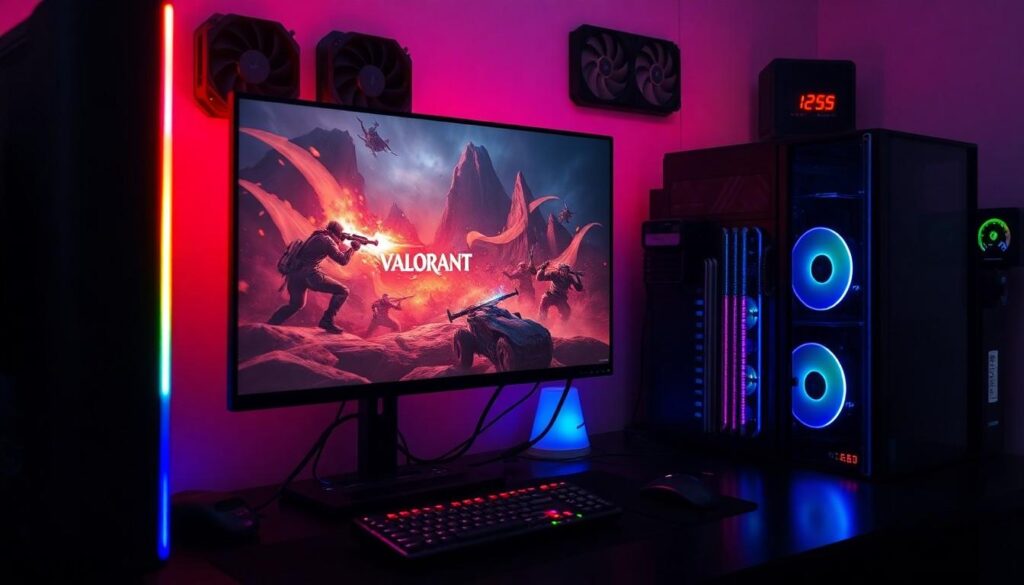
Understanding the common causes behind graphics driver crashes in Valorant can help gamers troubleshoot effectively. Various factors contribute to these issues, especially for players encountering frequent disruptions.
Outdated Graphics Drivers
Outdated graphics drivers frequently lead to crashes during gameplay. Manufacturers regularly release driver updates to enhance performance and fix bugs. Failing to keep these drivers current can result in compatibility issues with the latest game patches. Gamers should periodically check for updates from their graphics card provider, such as NVIDIA or AMD. Running a driver version that doesn’t align with the current game version can trigger errors. Installing the latest drivers ensures smoother gameplay and reduces potential crashes significantly.
Overheating Hardware
Overheating hardware can seriously impact gaming performance and lead to graphics driver crashes. Excessive heat affects the GPU, causing it to throttle or shut down. Monitoring the system’s temperature during gameplay is crucial for identifying overheating issues. Cleaning dust from fans and ensuring proper airflow can help keep temperatures down. Using tools to measure GPU temperatures provides players with valuable insights. Investing in cooling solutions, such as aftermarket fans or liquid cooling, can substantially improve hardware stability. By managing heat effectively, gamers can prevent crashes and enjoy uninterrupted sessions in Valorant.
Troubleshooting Steps
Follow these steps to resolve graphics driver crashes in Valorant effectively.
Check for Driver Updates
Keeping graphics drivers updated ensures optimal performance. Visit the official websites of NVIDIA or AMD to download the latest versions. Installing recent updates addresses compatibility issues with the game. Consider using the GeForce Experience or Radeon Software applications for automatic updates. Any missed updates might lead to crashes, impacting overall gaming experience.
Verify Game Files
Verifying the integrity of game files can identify and repair corrupted files. Access the game settings in your client, such as Riot Games Launcher or Steam. Select the option to verify or repair files. This process takes a few minutes but helps restore missing or damaged components. Successful verification can eliminate persistent crashes and enhance game stability. Regular file checks are advisable after major updates.
Adjust Graphics Settings
Modifying graphics settings can alleviate strain on the system. Start by lowering the resolution and adjusting texture quality in the game options. Disabling V-Sync and reducing shadows may also improve performance. These changes can minimize crashes caused by overheating or high resource demand. Testing different settings helps find a balance between quality and performance. Monitor system behavior after making adjustments for optimal gameplay.
Preventive Measures
Keeping graphics drivers updated and maintaining system performance are essential for preventing crashes in Valorant. Understanding and implementing preventive measures can significantly enhance the gaming experience.
Regular Driver Maintenance
Regularly updating graphics drivers helps maintain stability during gameplay. Checking for updates directly from NVIDIA or AMD ensures players use the latest software. Automated applications like GeForce Experience or Radeon Software streamline this process, making it easier. Installing updates promptly prevents compatibility issues with game patches. Furthermore, uninstalling outdated drivers before new installations can eliminate potential conflicts, providing smoother performance.
System Requirements Awareness
Awareness of system requirements is crucial to avoid driver crashes. Game developers publish minimum and recommended specifications for optimal performance. Ensuring hardware meets these requirements prevents overloading during gameplay, reducing the likelihood of crashes. Upgrading hardware components, such as RAM or graphics cards, can also enhance performance. Additionally, players should monitor system temperatures to prevent overheating and strain on components, which directly affects driver stability.
Conclusion
Experiencing graphics driver crashes in Valorant can be frustrating but understanding the causes and solutions can make a significant difference. By keeping drivers updated and monitoring system performance, gamers can minimize disruptions and enhance their overall experience. Implementing regular maintenance and troubleshooting steps ensures smoother gameplay and reduces the likelihood of encountering crashes. With the right knowledge and proactive measures, players can enjoy Valorant without the hindrance of technical issues.